AI for Google Workspace
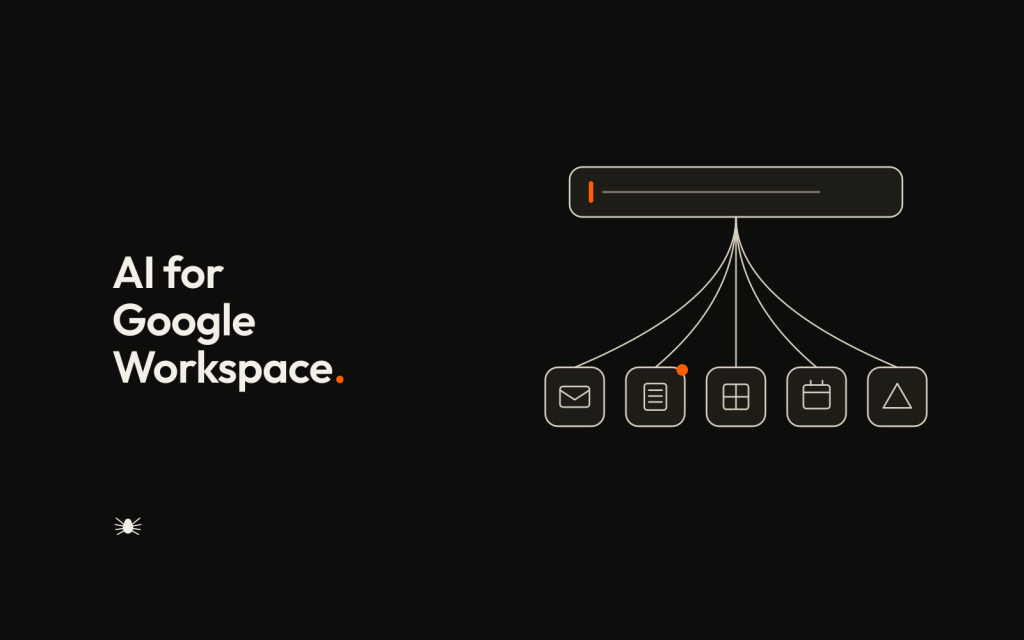
Here is a fact most guides bury under the feature lists: if your business runs on Google Workspace, you are very probably already paying for the AI and not using it.
Google folded Gemini into its Business and Enterprise plans at no extra cost, so unlike the add on model elsewhere, the question for most Workspace customers is not whether to buy the AI but whether they have switched on what they already own.
That changes the whole shape of this guide. Rather than talk you into a purchase, it walks through what Gemini does across your apps, what the new Workspace Studio actually changes, and the honest point where Google’s tools stop and a bespoke build begins.
Google Workspace AI is Gemini: Google’s AI assistant, woven through Gmail, Docs, Sheets, Slides, Meet, Chat and its newer apps. It drafts, summarises, generates, and answers questions grounded in your own content.
Sitting above the per app help is Workspace Studio, Google’s no code way to build multi step AI workflows in plain language, which is the genuinely new development of 2026 and the part worth understanding before anything else.
What is Google Workspace AI?
Google Workspace AI has two layers worth separating. The first is Gemini inside the individual apps: the assistant that drafts an email in Gmail, summarises a long document in Docs, writes a formula in Sheets from a plain description, or takes notes for you in Meet.
This is assistance, one task at a time, at the point you are working.
The second layer is Workspace Studio, which moves from assisting to executing: you describe a multi step process in ordinary language, such as labelling incoming mail by topic or assembling a briefing before each meeting, and Studio builds an agent that carries it out.
Underneath, the reasoning runs on Google’s current Gemini models, with a faster default model for everyday tasks and a more capable one available for complex work.
The reason to hold those two layers apart is that they answer different needs. The per app Gemini removes small frictions as you go; Workspace Studio removes whole repeated routines.
Most businesses will use the first straight away and reach for the second only once they have a routine worth handing over, which is the right order to approach them in.
How Google Workspace AI works
The mechanism is consistent across the apps.
When you ask Gemini for something, it gathers the relevant context, the thread you are reading, the document you are in, or the files you have permission to access, and passes it to a Gemini model, which returns a draft, a summary, or an answer for you to check.
Because it draws on your own Workspace content rather than only general knowledge, the output reflects your actual material, not a generic guess.
Workspace Studio extends the same idea over several steps, deciding the sequence of actions needed to complete the routine you described rather than waiting for a prompt at each stage.
The safeguard inside that flow is permission inheritance. Gemini only reaches content the individual user is already allowed to open, so it works within your existing sharing rules rather than around them.
As with any AI pointed at your documents, that makes the tidiness of your Drive and your access settings part of how well, and how safely, the assistant performs.
What Gemini does in each app
Taken app by app, the picture is concrete. In Gmail, Gemini drafts replies, refines your tone, and summarises a long or busy thread into its essentials. In Docs, it produces an outline, drafts sections, and condenses a lengthy document to a summary.
In Sheets, it turns a plain English request into a working formula and helps organise or interpret data without spreadsheet expertise. In Slides, it generates a first draft deck from a prompt or a document.
In Meet, it takes AI notes and captures the actions and decisions so nobody has to scribble through the call. Google has also been extending Gemini into newer tools, including voice input across several apps and its video and image creation apps.
The common thread is that Gemini hands you a draft or a summary and leaves the final judgement to you, which is exactly how it should be used.
What Gemini is included in, and what is not
Because Google bundled Gemini into its paid plans, the pricing story is refreshingly simple compared with the add on approach elsewhere: the core Gemini features come with Business Standard and above, and with Enterprise, at no separate charge. What is not unlimited is the heavier usage.
Google gates the more demanding capabilities, higher volume automation and generation, behind plan tiers and an expanded access add on for businesses that push past the standard limits, and it has signalled that firmer limits on Workspace Studio usage arrive during 2026.
The practical takeaway is that you almost certainly already have the everyday AI; what you may need to pay more for is scale, once an automation is doing real volume.
Google’s own Workspace pricing and plans guide is the authoritative place to confirm exactly what your plan includes before you assume a limit you do not have.
Google Workspace AI use cases
The reliable wins are the frequent, low judgement tasks. Clearing a Gmail backlog by summarising threads and drafting routine replies for a quick check. Catching up on a missed Meet call through AI notes rather than chasing a colleague.
Turning a long report into a Docs summary, or a rough brief into a first draft deck in Slides. Getting a Sheets formula by describing the calculation instead of recalling the syntax.
And, with Workspace Studio, standing routines such as auto labelling enquiries or preparing a pre meeting briefing pack each morning.
To ground it, picture a UK marketing lead whose inbox and calendar run entirely on Workspace.
Gemini summarises the overnight Gmail threads and drafts the straightforward replies, Meet hands her tidy notes from the call she could not join, and a Workspace Studio agent she set up once assembles a short briefing on each client before their meeting, pulling from the relevant Docs and past mail.
None of it is dramatic in isolation; together it removes the daily scramble of preparation and triage. That is the realistic shape of the value, and it starts with the apps she already opens every day.
What Gemini will not do for you
The honest limit is the edge of Google’s own world. Gemini and Workspace Studio handle Google native workflows well, but they do not natively reach into an external CRM, an accounts package, or a non Google API.
The moment a useful workflow needs to read an enquiry, update a record in a separate system, and act on it across tools Google does not make, you are past what the native features cover and into integration, whether through Apps Script, Google Cloud, or a purpose built connector.
That is the same layered choice our AI integrations guide lays out: native features first, then middleware, then a bespoke build where the workflow genuinely earns it.
Workspace Studio is a real step up from simple assistance, but it is still bounded by the Google ecosystem, and knowing that boundary saves you expecting it to do something it was never built to.
A data handling note matters for UK organisations too.
Google processes Workspace data in line with its data protection commitments for UK and EU customers, but residency and configuration still matter in regulated sectors, and because these features touch mail and documents holding personal data, it is worth confirming your setup before a wide rollout rather than after one.
How to introduce AI across Google Workspace
Begin by using what you already pay for. For most UK businesses the fastest return is enabling Gemini in Gmail and Meet: drafting and summarising in the inbox, and automatic notes in meetings, both on the plan you likely already hold.
Prove the value there with a small group before going further. Once a genuinely repetitive routine emerges, that is the cue to try Workspace Studio and let it run the multi step version, keeping a person checking the output while you build confidence in it.
Then recognise the ceiling for what it is. When the workflow you want reaches outside Workspace into your other systems, the answer is integration, not more Gemini prompts.
Our email automation guide goes deeper on the inbox side of that, and our companion guide to AI for Microsoft 365 covers the equivalent ground for businesses on Microsoft’s platform, which is useful if you run a mix of both.

Has OpenAI achieved AGI? The company selling the chips says yes
No. OpenAI has not claimed it, and there is no regulator, standards body or agreed benchmark that defines the threshold. The claim…

Claude watermark explained: what it does and whether it can be removed
From 2 August 2026, new Claude models embed an invisible, machine readable mark in every piece of text they generate. Supported files…